Your WordPress website looks great — clean design, strong branding, clear message. But if it takes more than 3 seconds to load, visitors are already gone.
Website performance is no longer optional. Google uses page speed as a ranking factor, and studies show that even a 1-second delay can reduce conversions by up to 7%. In a competitive online space, a slow website is a business problem — not just a technical one.
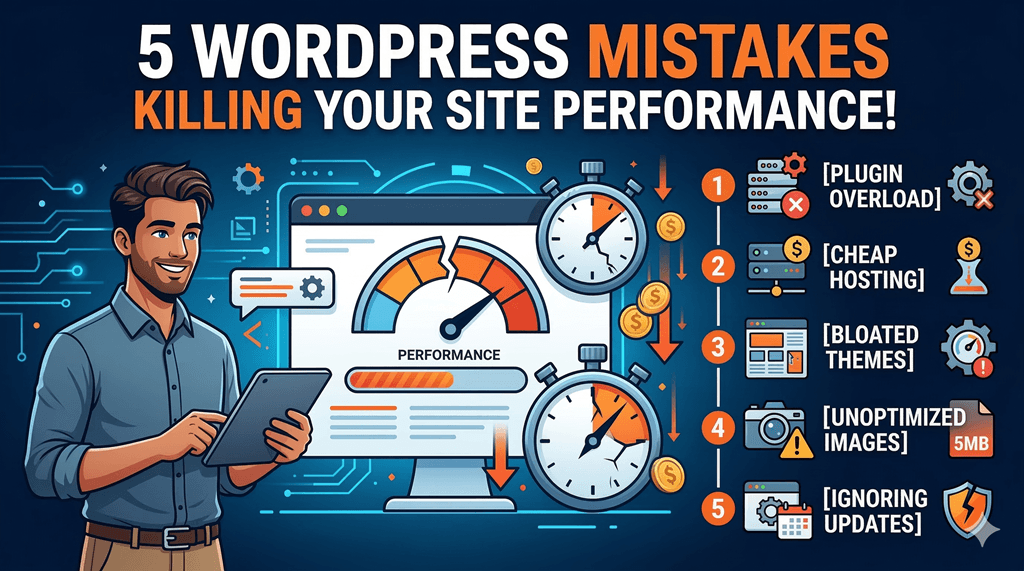
In this article, I’ll walk you through the 5 most common WordPress mistakes that hurt website performance, why each one matters, and exactly how to fix them.
Why WordPress Performance Matters for Your Business
Before diving into the mistakes, it’s worth understanding what poor performance actually costs you:
- Slow websites rank lower on Google search results
- Higher bounce rates mean fewer leads and sales
- Poor Core Web Vitals scores hurt your SEO visibility
- Mobile users are especially sensitive to slow load times
- A fast website builds trust and professionalism instantly
The good news? Most WordPress performance problems come from a handful of common, fixable mistakes.
Mistake #1: Using Too Many Plugins
What Is the Problem?
WordPress plugins are powerful — they let you add almost any feature without touching code. But each plugin you install adds extra code, database queries, and HTTP requests to your website. The more plugins you have, the heavier your site becomes.
This is often called plugin bloat. I’ve audited WordPress sites with 50, 60, and even 70 active plugins. Most of those sites were loading in 6–8 seconds.
Why It Hurts Performance
- Each plugin loads its own CSS and JavaScript files
- Poorly coded plugins run unnecessary database queries on every page load
- Conflicting plugins can cause errors that slow everything down
- Outdated or abandoned plugins create security vulnerabilities
- Multiple plugins doing overlapping jobs waste server resources
How to Fix It
- Audit your plugins every 1–2 months — ask “do I actually need this?”
- Deactivate AND delete plugins you’re not using (deactivating alone still leaves files behind)
- Replace several single-purpose plugins with one well-built multi-function solution
- Use tools like Query Monitor to identify slow or bloated plugins
- Aim to keep your active plugin count under 20 where possible
- Always check plugin ratings, reviews, and last update date before installing
Quick Tip
Before installing any new plugin, ask: “Can I achieve this with a small code snippet instead?” A 5-line function in your child theme is almost always faster than a plugin.
Mistake #2: Using Cheap or Slow Hosting
What Is the Problem?
Hosting is the foundation of your website. No matter how well-optimized everything else is, a slow server will drag your performance down. Yet many business owners choose the cheapest hosting option available — often shared hosting plans that overcrowd servers with thousands of websites.
Why It Hurts Performance
- Shared servers share CPU and memory across hundreds or thousands of sites
- Budget hosts often use older PHP versions (7.4 or below) which are significantly slower
- No built-in caching or CDN means every page request hits the server fresh
- Poor server infrastructure leads to high Time to First Byte (TTFB) — a key Google metric
- Downtime and reliability issues damage both user experience and SEO
How to Fix It
- Switch to managed WordPress hosting — providers like Kinsta, WP Engine, or Cloudways are built specifically for WordPress performance
- Make sure your host runs PHP 8.1 or higher
- Look for hosting that includes a built-in CDN (Content Delivery Network)
- Choose a server location closest to your target audience
- Use tools like GTmetrix or Pingdom to test your current TTFB
Quick Tip
Think of hosting as rent for your website. Paying a little more for quality hosting often has a bigger impact on speed than any other single change you can make.
Mistake #3: Using Heavy Themes and Page Builders
What Is the Problem?
Premium themes from marketplaces like ThemeForest are tempting — they look stunning in demos and promise everything out of the box. But many of these themes are heavily bloated with features, scripts, and styling you’ll never use.
The same applies to some popular page builders. Tools like Divi, WPBakery, and some Elementor setups can add massive amounts of CSS and JavaScript to every single page — even when those features aren’t used on that page.
Why It Hurts Performance
- Bloated themes load dozens of CSS and JS files on every page load
- Page builders often generate messy, redundant HTML code
- Many premium themes load sliders, fonts, and scripts you never activated
- Heavy themes score poorly on Google’s Core Web Vitals (especially LCP and CLS)
- Built-in “demo” features that aren’t removed add dead weight to every page
How to Fix It
- Switch to a lightweight theme — Astra, GeneratePress, or Kadence are excellent choices (all under 50KB)
- If you use Elementor, disable the loading of its CSS/JS on pages that don’t use it
- Use the native WordPress Block Editor (Gutenberg) where possible — it’s faster than most page builders
- Install Asset CleanUp or Perfmatters to disable unused scripts per page
- Always test a theme’s performance using GTmetrix before committing to it
Quick Tip
A theme should give you a solid structure — not a feature circus. The best-performing WordPress sites keep themes minimal and build features intentionally.
Mistake #4: Not Optimizing Images and Media Files
What Is the Problem?
Images are almost always the largest files on any webpage. When they’re not properly optimized, they become the biggest drag on your load time. This is the most common issue I find when auditing WordPress sites — and also the easiest to fix.
Many website owners upload photos straight from their phone or camera — files that can be 3MB, 5MB, even 10MB in size. Then they drop them on the homepage and wonder why the page loads slowly.
Why It Hurts Performance
- Large image files take longer to download on every device
- Uncompressed images dramatically increase page size
- Serving the wrong image dimensions wastes bandwidth
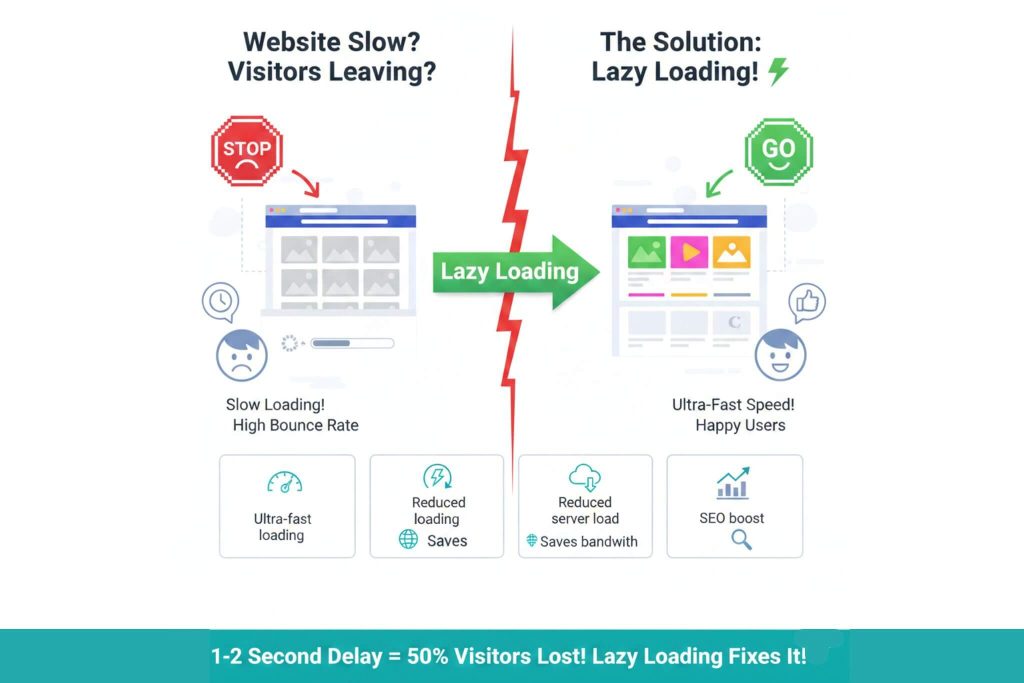
- Images without lazy loading all download at once, even if the user never scrolls that far
- Old formats like PNG and BMP are significantly larger than modern alternatives
How to Fix It
- Always compress images before uploading — use TinyPNG, Squoosh, or ImageOptim
- Switch to WebP format — it’s 25–35% smaller than JPEG with the same visual quality
- Resize images to the actual display size before uploading (no need for a 4000px wide image on a 1200px column)
- Use a plugin like ShortPixel, Imagify, or EWWW Image Optimizer to automate compression
- Enable lazy loading — images only load when the user scrolls to them
- Run a bulk optimization on your existing media library to fix old uploads
Quick Tip
A good rule of thumb: no image on your website should be larger than 200KB. Hero images can stretch to 400–500KB if needed, but anything beyond that needs optimization.
Mistake #5: Ignoring Website Maintenance and Updates
What Is the Problem?
WordPress is not a “set it and forget it” platform. It requires regular maintenance to stay fast, secure, and reliable. Many website owners build their site, launch it, and then leave it untouched for months or years.
Outdated WordPress installations, themes, and plugins are one of the leading causes of both security breaches and performance issues.
Why It Hurts Performance
- Outdated plugins don’t benefit from performance improvements in newer versions
- Old code isn’t optimized for current PHP versions, leading to slower execution
- Plugin conflicts from neglected updates can cause hidden performance issues
- A bloated database with post revisions, spam comments, and transients slows down queries
- Security vulnerabilities in old plugins can lead to malware that destroys site speed
How to Fix It
- Update WordPress core, all themes, and all plugins at least once a month
- Always test updates on a staging site before pushing to live
- Clean your database regularly using WP-Optimize or Advanced Database Cleaner
- Remove plugins that haven’t been updated by their developers in over 12 months
- Set up uptime monitoring with tools like UptimeRobot (free) so you know immediately when something breaks
- Keep regular backups using UpdraftPlus or your hosting provider’s backup system
Quick Tip
Schedule a “WordPress maintenance day” once a month — 30 minutes of updates, cleanup, and backups can prevent hours of troubleshooting later.
What I See When Auditing Real WordPress Sites
When I run performance audits on client websites, the same picture comes up time and time again:
- Load times between 5 and 9 seconds
- Page sizes over 5MB — mostly unoptimized images
- 40–60 active plugins, many unused or overlapping
- Sites running on PHP 7.2 or older
- Themes are loading 30+ CSS and JS files on every page
These aren’t unusual cases. This is the average WordPress site. And the frustrating part is that most of it is fixable in a single focused session.
After a proper performance audit and cleanup, most sites I work on go from 6–8 seconds down to under 2 seconds. That’s not magic — it’s just fixing the basics correctly.
How to Check Your WordPress Site Performance Right Now
Not sure how your site is performing? Start here:
- Google PageSpeed Insights — pagespeed.web.dev — free, shows Core Web Vitals
- GTmetrix — gtmetrix.com — detailed waterfall analysis
- Pingdom — tools.pingdom.com — simple speed test from multiple locations
Run your homepage through all three. If you’re scoring below 70 on PageSpeed or loading slower than 3 seconds, it’s time for a performance audit.
Final Thoughts: WordPress Can Be Blazing Fast
WordPress powers over 43% of the internet. It’s not an inherently slow platform — but it’s easy to make it slow if you’re not careful.
The five mistakes covered in this article are responsible for the majority of WordPress performance problems I see. None of them requires advanced technical knowledge to fix. They just require awareness and the right approach.
A fast website isn’t a luxury — it’s a business advantage. Your visitors notice. Google notices. Your conversion notice.